
Set up Wi-Fi
A Wi-Fi module update uses your Wi-Fi network. The Wi-Fi Setup window guides you through choosing a network, entering its password, and confirming the connection.
Enter the network credentials
-
Choose a network.
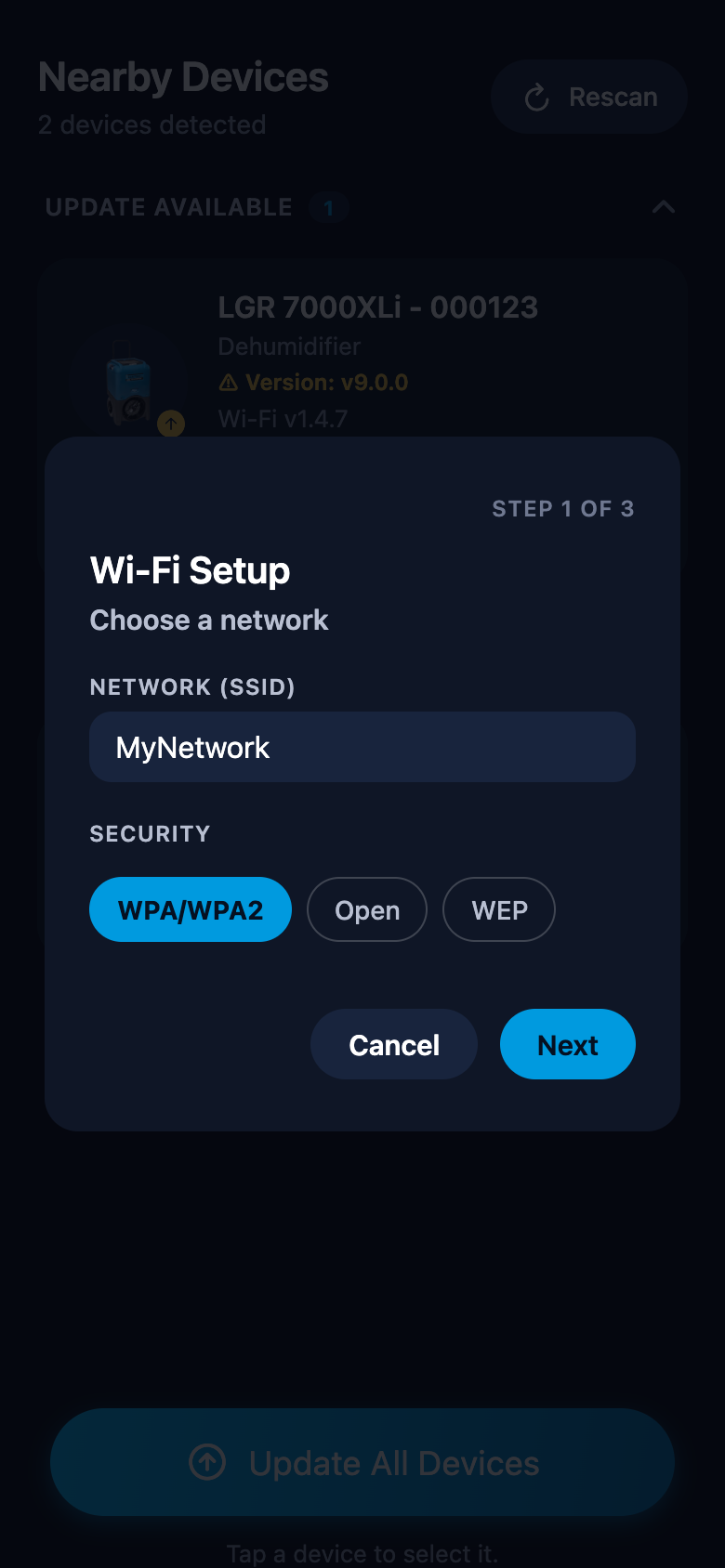
On the phone, Choose a network opens with the networks detected by a selected device. Use Filter networks to narrow the list, or Rescan to refresh it. The window identifies which device scanned; other selected devices may see different networks.
Select a network and tap Next. Its security type is filled in from the scan. For a hidden network or manual entry, tap Enter network manually, enter Network (SSID), choose WPA/WPA2, Open, or WEP, and tap Next.
-
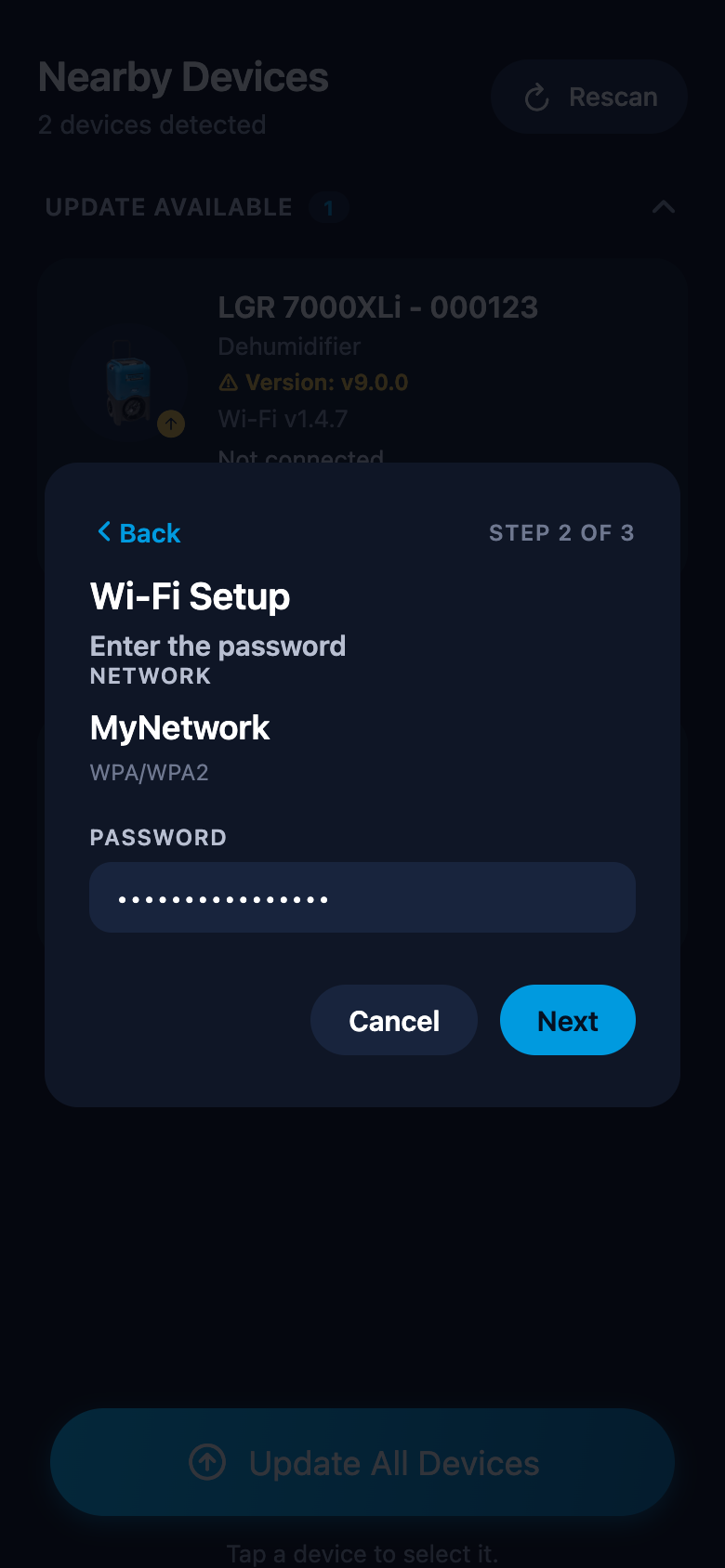
Enter the password, then tap Next.
The Enter the password step shows the selected network. Open networks skip this step because they do not need a password.
-
Confirm and connect.
Check the Network summary, then tap Save & Connect. The connection status appears beside the network. Once the device is connected, the update continues automatically; if the window remains open, tap Continue when it becomes available.
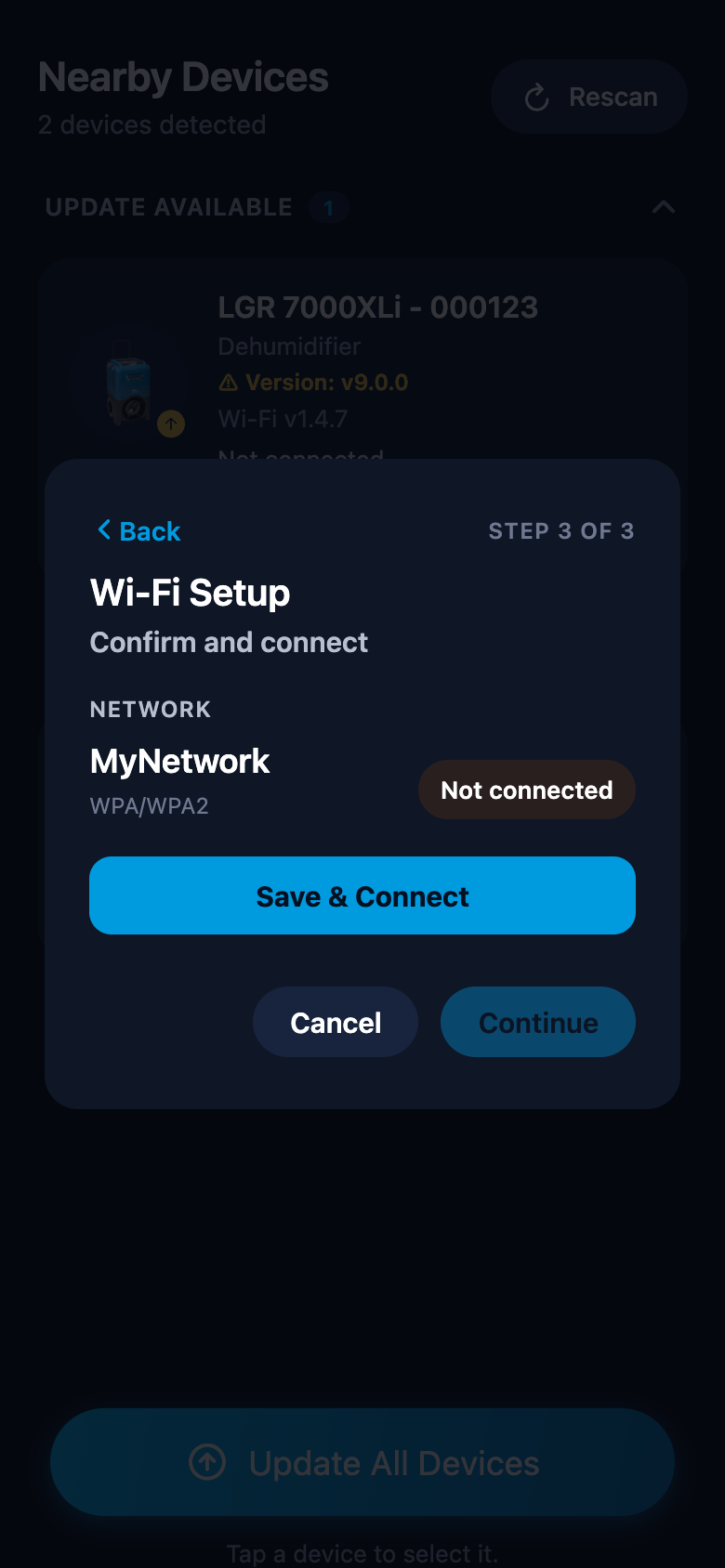
Use Back to return to an earlier step and change the network or password. Cancel closes the setup, including while a connection attempt is in progress.
If the device already reports a connected network, or matching credentials were entered earlier in this session, the window can open directly on Confirm and connect. Check the network shown. An existing device connection can be used with Continue without re-entering its password; use Back if you need to change it.
Phone and device on the same network
The phone must be on the same Wi-Fi network as the device. If needed, the app asks: "Connect this phone to the selected Wi-Fi network, then return to continue." Use Open Settings, join the network, and come back to the app.
Input rules
- The network name must fit in 32 bytes and the password in 64 bytes. Accented characters use more than one byte, so the app may warn: "SSID must fit in 32 bytes (accented characters use more than one)."
- Leaving the network name empty prompts "Enter the Wi-Fi network name (SSID)."; a missing password prompts "Enter the Wi-Fi password."
Several devices at once
When you update several devices together they must all use the same network. If they report different networks, the app warns: "The selected devices are on different Wi-Fi networks. They must all be on the same network before updating. Please enter the correct credentials." — then asks for the credentials to use for all of them.
If the device won't connect
When the name or password is wrong, the window stays open and tells you — use Back to correct them, then return to Confirm and connect and tap Save & Connect:
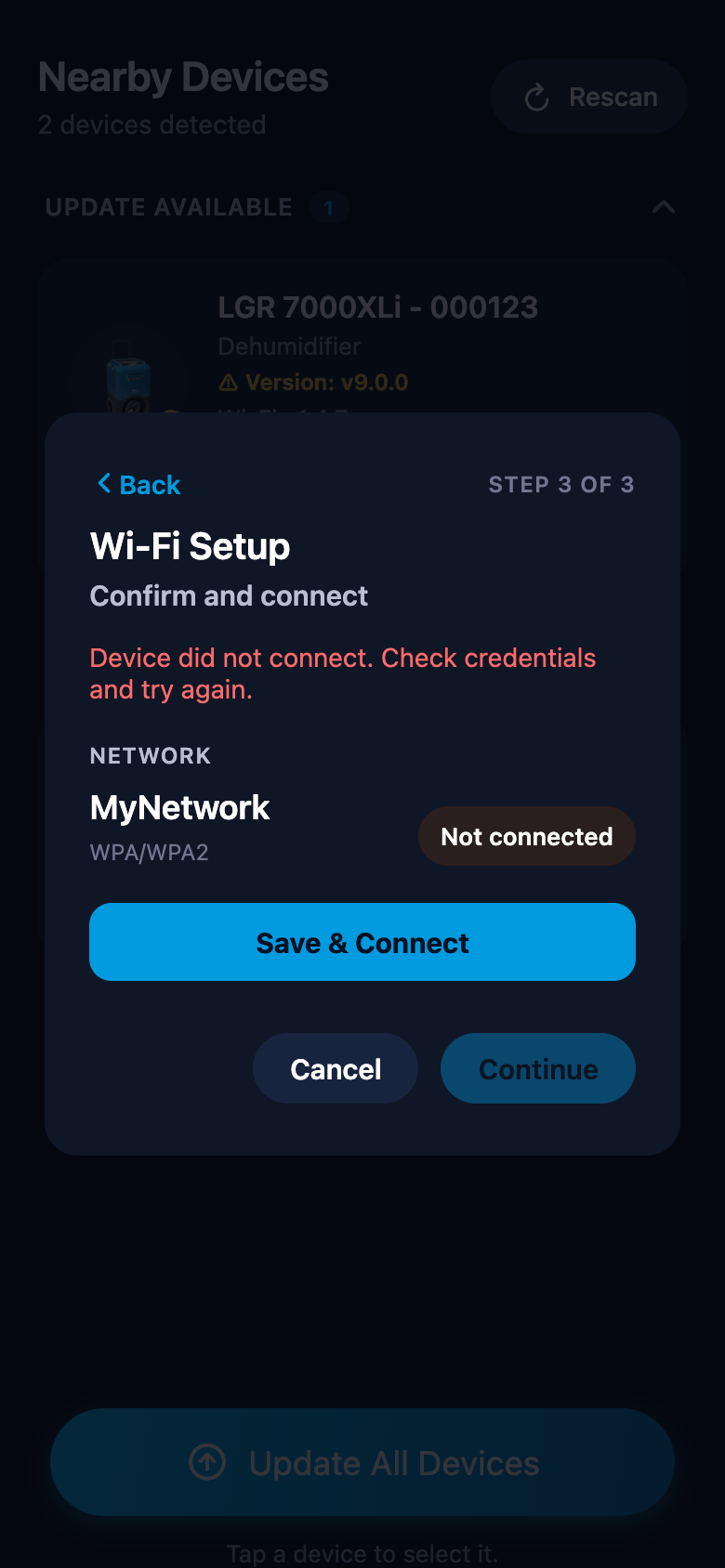
- "The device didn't connect to Wi-Fi in time. Try again." — move the device closer to your router and retry.
- Make sure the network is one the device supports; networks with an unsupported security type are shown as "Unsupported security" in the scan results and can't be selected.